SiftHub Logo-sm

SiftHub + Slack

Get immediate and accurate responses from your company's knowledge, directly in Slack

Start Integrating Today

About the integration

Ever been stuck searching for that one answer you know exists somewhere?

You’ve scoured through threads, DMed your colleagues, and still—no luck. Sound familiar?

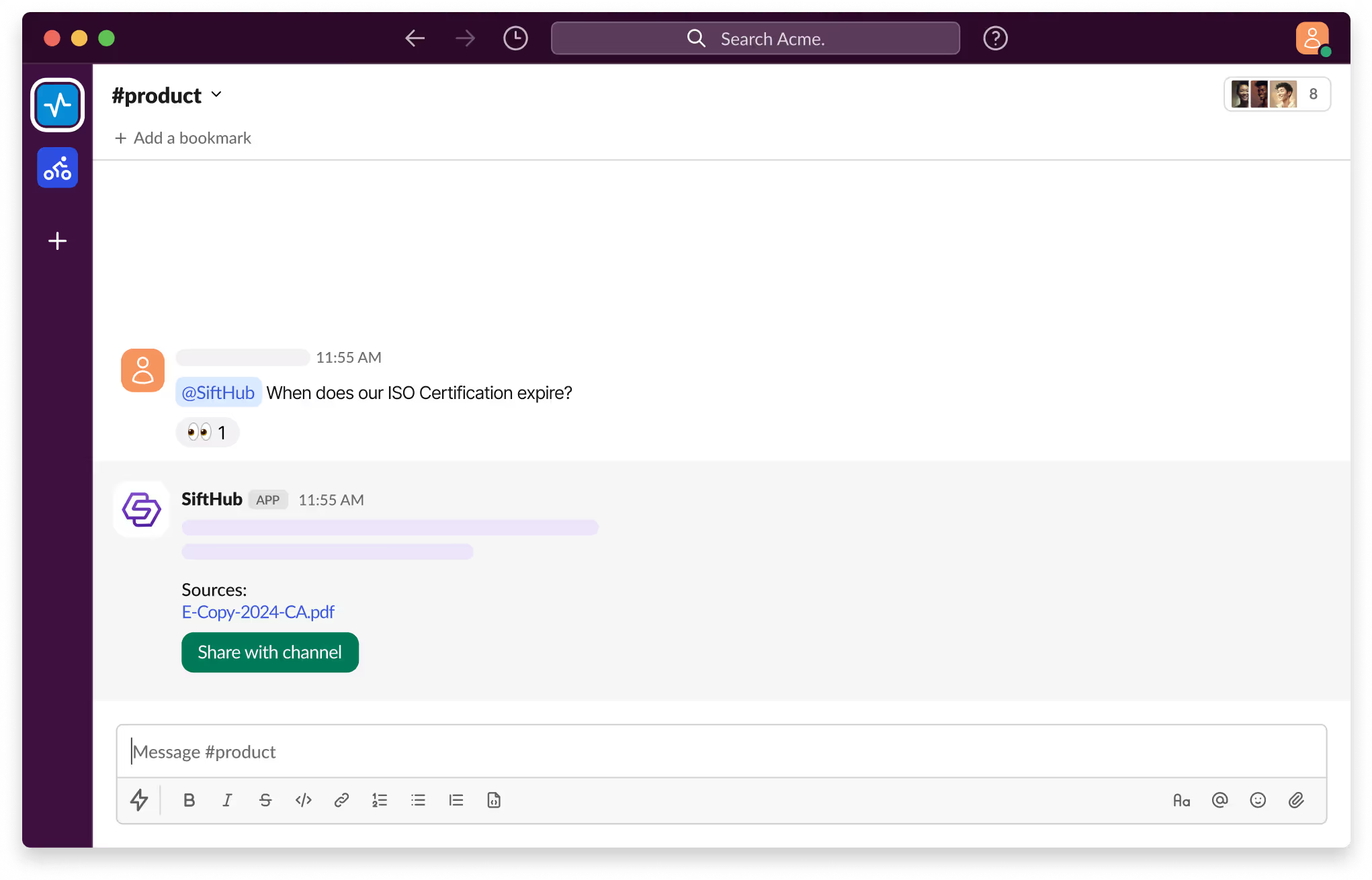
With SiftHub bot for Slack, those days are over. Simply @SiftHub in any Slack channel (public or private) and ask your question. Instantly, you'll get a response powered by the collective knowledge of all your connected sources on the SiftHub Platform.

No more digging, no more guessing—just answers, right when you need them.

The SiftHub Slack integration empowers your sales and presales teams in two big ways: 

  1. It brings context from various Slack channels into the SiftHub platform, enabling you to leverage that knowledge and make it available for semantic search and AI response generation.
  2. It unlocks the ability to access the vast knowledge SiftHub has access to through connected sources directly inside Slack via a bot.

Capabilities

Activating the SiftHub bot for Slack

Step 1:

Sign into your company’s SiftHub account here.

Step 2:

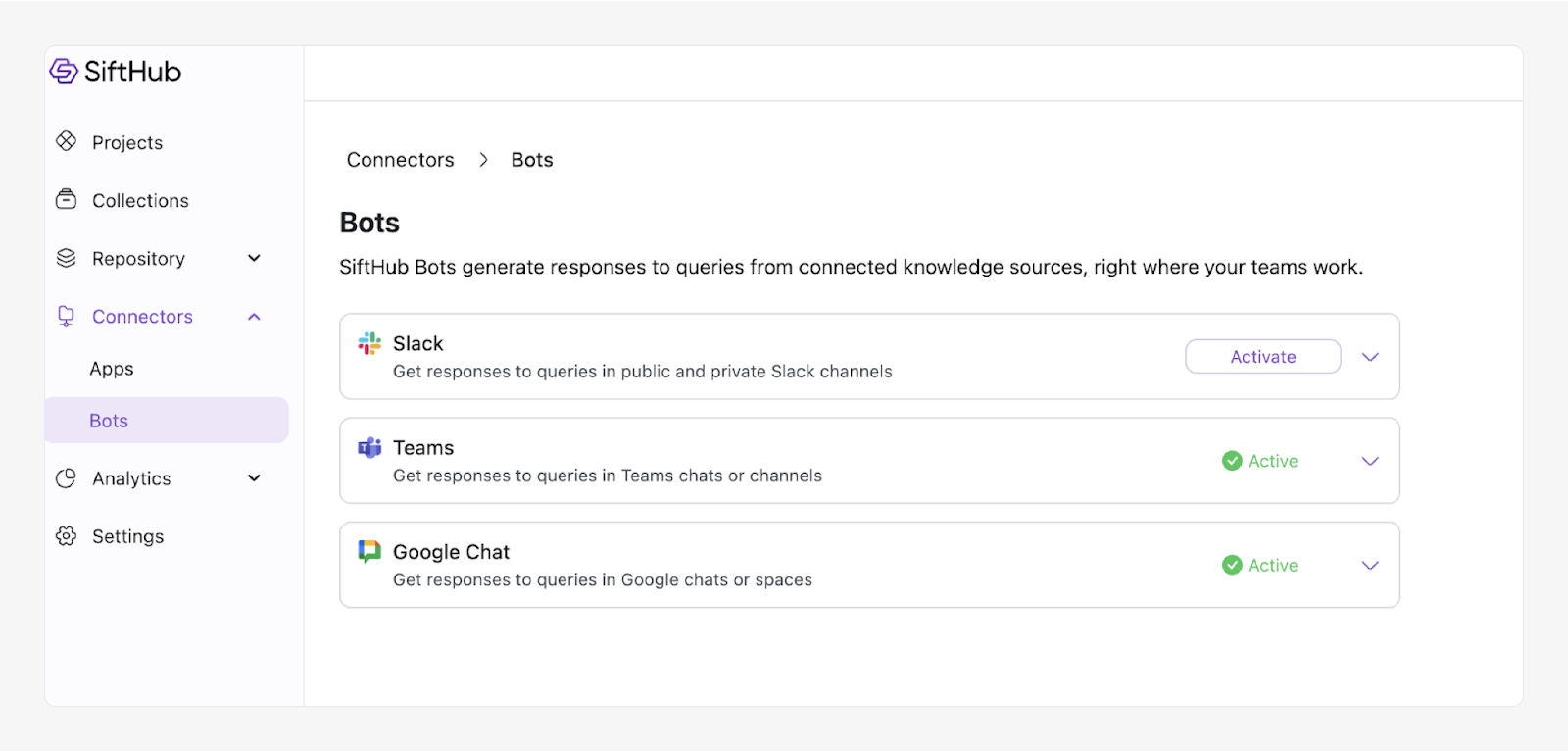
Once you’ve logged in, navigate to the ‘Connectors’ tab in the left side panel and select ‘Bots’. Find the ‘Slack’ bot in the ‘Bots’ tab and click ‘Activate’ after reading the description given there.

Step 3:

On the OAuth consent screen that opens, make sure the correct Slack Workspace is selected and click on the Allow button to approve the request for SiftHub to access your Slack workplace. It's important to review the permission that the consent screen shows before assenting to the permission request.

Step 4:

Once the setup is successful, you will be redirected to the SiftHub Web App and your bot connection status will show ‘Activated’.

Your SiftHub bot for Slack is now set up, make sure you test it!

Go to your Slack workspace to confirm that the SiftHub app now shows on the app section of your workspace. Tag @SiftHub in a channel or ask the bot a question via DM and confirm that you get a response. 

SiftHub-Slackbot-Product

Disclaimer:
SiftHub uses AI language models that generate responses from your organization’s connected knowledge sources. But it may sporadically be inaccurate. Always verify critical information independently when making important decisions.

Slack Connector:

Select specific Slack workspaces and channels you want to connect to SiftHub to make every message, snippet, or shared attachment searchable and usable for AI response generation. Say goodbye to tribal knowledge!

SiftHub Bot for Slack:

Activate the SiftHub bot for Slack and allow users to @SiftHub in any channel (public or private) and ask questions. The bot then delivers instant answers right where you work, powered by your company’s connected knowledge sources as managed in SiftHub.

Everything you need to know about the SiftHub - Slack integration

Category Details
What gets connected You can connect public channels and private channels that you have access to. When you connect a channel, SiftHub will be able to read and index the following content: your messages, threads, replies, and attachments (in supported formats).
How it works (Slack Connector) SiftHub maintains all native Slack permissions and makes content available for semantic search and AI response generation.
How it works (SiftHub Bot for Slack) You can ask SiftHub questions in both public and private channels or send the bot a DM to get the information you need, when you need it.
Access controls Users will see only content from all public channels to which they are added. Private channel content is only visible to users who have access to that channel. Permissions automatically update with any changes in Slack.

How to set up

Activating the SiftHub bot for Slack

Step 1:

Sign into your company’s SiftHub account here.

Step 2:

Once you’ve logged in, navigate to the ‘Connectors’ tab in the left side panel and select ‘Bots’. Find the ‘Slack’ bot in the ‘Bots’ tab and click ‘Activate’ after reading the description given there.

Step 3:

On the OAuth consent screen that opens, make sure the correct Slack Workspace is selected and click on the Allow button to approve the request for SiftHub to access your Slack workplace. It's important to review the permission that the consent screen shows before assenting to the permission request.

Step 4:

Once the setup is successful, you will be redirected to the SiftHub Web App and your bot connection status will show ‘Activated’.

Your SiftHub bot for Slack is now set up, make sure you test it!

Go to your Slack workspace to confirm that the SiftHub app now shows on the app section of your workspace. Tag @SiftHub in a channel or ask the bot a question via DM and confirm that you get a response. 

SiftHub-Slackbot-Product

Disclaimer:
SiftHub uses AI language models that generate responses from your organization’s connected knowledge sources. But it may sporadically be inaccurate. Always verify critical information independently when making important decisions.

Activating the Slack Connector

Connection Requirements: Ensure you have the following access and permissions before you begin the setup, or contact the respective administrator for the same.

  • Slack Workspace Admin access: To install the SiftHub app Slack app in the workspace
  • SiftHub Admin or Account Owner role: To activate the Connector from the SiftHub Web App > Connectors > Apps page.

Step 1: Sign in to your company’s SiftHub account here.

Step 2: Once you’ve logged in, navigate to the ‘Connectors’ tab in the left side panel and select ‘Apps’. Find the ‘Slack’ Connector in the ‘Apps’ tab and click ‘Connect’ after reading the description given there.

Step 3: On the OAuth consent screen that opens, make sure the correct Slack Workspace is selected and click on the Allow button to approve the request for SiftHub to access your Slack workplace. It's important to review the permission that the consent screen shows before assenting to the permission request.

Step 4: You will be redirected back to the SiftHub Web App → Slack Channel selection screen. Select the Slack Channels you wish to connect to SiftHub.

Step 5: Once the setup is successful, you will see the connection status as ‘Connected’. Go to your Slack workspace to confirm that the SiftHub app now shows in the app section of your workspace.

Activating SiftHub Bot for Slack

Connection requirements: Ensure you have the following access and permissions before you begin the setup, or contact the respective administrator for the same.

  • Slack Workspace Admin access: To install the SiftHub app in the workspace
  • SiftHub Admin or Account Owner role: To activate the Bot from the SiftHub Web App > Connectors > Bots page.

Step 1: Sign in to your company’s SiftHub account here.

Step 2: Once you’ve logged in, navigate to the ‘Connectors’ tab in the left side panel and select ‘Bots’. Find the ‘Slack’ bot in the ‘Bots’ tab and click ‘Activate’ after reading the description given there.

Step 3: On the OAuth consent screen that opens, make sure the correct Slack Workspace is selected and click on the Allow button to approve the request for SiftHub to access your Slack workplace. It's important to review the permission that the consent screen shows before assenting to the permission request.

Step 4: Once the setup is successful, you will be redirected to the SiftHub Web App and your bot connection status will show ‘Activated’.

Test it! Go to your Slack workspace to confirm that the SiftHub app now shows in the app section of your workspace. 

Tag @SiftHub in a channel or ask the bot a question via DM and confirm that you get a response. 

Frequently asked questions

1. What does the SiftHub Slack integration do?

The integration helps amplify the power of both SiftHub and Slack in two ways through the Slack Connector and the SiftHub Bot for Slack. With the Slack Connector, you can connect specific workspaces and channels to the SiftHub platform to make messages, threads, replies, and attachments available for semantic search and AI response generation for sales and presales teams.

With the SiftHub Bot for Slack, you can directly query @SiftHub inside your Slack instance to get instant, accurate answers without leaving your workflow.

2. How does SiftHub work inside Slack?

Ask questions in any channel or DM, and SiftHub responds using your connected knowledge sources: across docs, past RFPs, call transcripts, sales enablement assets, product release notes, CRM fields, and more.

3. How do I set up the Slack integration?

For Slack Connector: Sign in to the SiftHub app, authorize the integration, select the workspaces and channels you want to connect, and in a few minutes, you’re up and running!

For SiftHub Bot for Slack: Sign in to the SiftHub app, authorize the bot set up within your selected workspace, and you’re good to go. The setup takes under five minutes.

4. Is the Slack integration secure?

Yes. All data is encrypted end-to-end, permission-aware, SOC 2 compliant, and governed by your Slack workspace access controls.

5. What sources can SiftHub use to answer questions in Slack?

SiftHub draws on connected knowledge sources to provide context-aware and accurate answers to questions. These knowledge sources could be: Confluence, Google Drive, SharePoint, PDFs, Notion, CRM fields, product docs, and past questionnaires, to name a few.

6. Can SiftHub answer product, technical, or RFP questions inside Slack?

Yes. The integration can respond to technical product questions, pull RFP answers, explain features, summarize policies, and generate approved responses on demand.

7. Can teams collaborate with SiftHub in Slack?

Yes. Teams can ask questions together, @mention colleagues, attach files, and save verified answers directly to the knowledge base – all inside Slack.

8. Does SiftHub store Slack messages?

Yes. You can summarize long conversations, extract key decisions, generate next steps, or attach relevant documents with one command.

9. Can SiftHub summarize Slack threads or pull out key points?

Yes. You can summarize long conversations, extract key decisions, generate next steps, or attach relevant documents with one command.

10. Who should use the SiftHub Slack integration?

AEs, SEs, Product, Customer Success, Enablement, Marketing, and Support teams; anyone who needs fast, accurate answers and deal context right where conversations happen can use SiftHub’s Slack integration.

Need additional support?

If you need any additional help in setting up your Slack integration, feel free to reach out directly to your SiftHub Customer Success Manager, or write to us at support@sifthub.io.

AI RFP software that works where you work

circle patterncircle pattern
#setup{ scroll-padding-top: 140px; }