01
About
02
Capabilities
03
How to setup
04
FAQ
05
Support

Tap into HubSpot deal context and history to generate content tailored to each prospect and customer.
Start Integrating TodayWith SiftHub’s Slack Connector, every message and attachment shared in Slack can become part of your response generation and semantic search capabilities. Seamlessly integrate the channels and workspaces you choose, unlocking the power of your team’s conversations to drive smarter, faster decisions within the SiftHub Platform.
Say goodbye to scattered information and hello to a more connected, efficient workflow!
You’ve scoured through threads, DMed your colleagues, and still—no luck. Sound familiar?
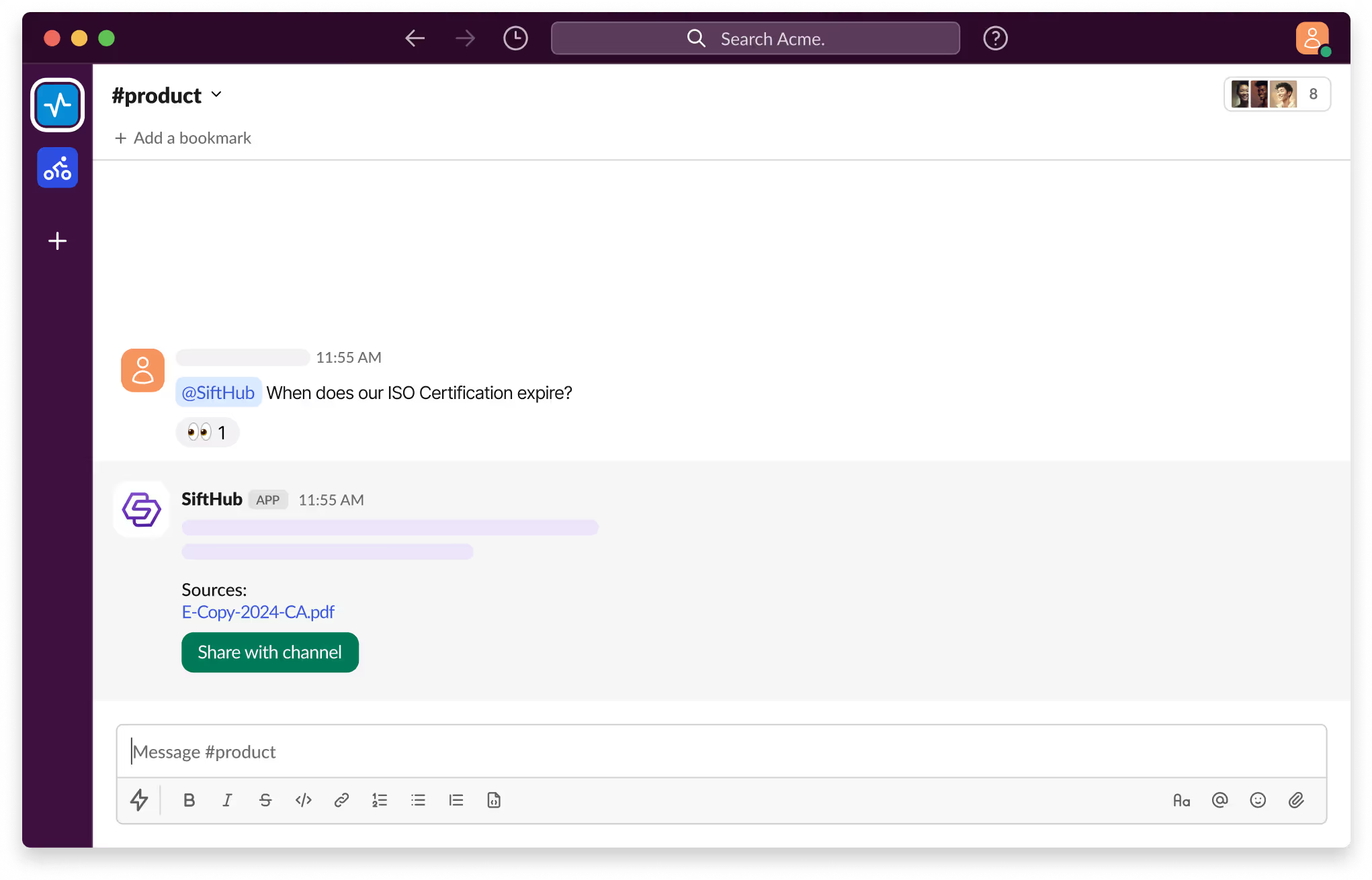
With SiftHub bot for Slack, those days are over. Simply @SiftHub in any Slack channel (public or private) and ask your question. Instantly, you'll get a response powered by the collective knowledge of all your connected sources on the SiftHub Platform.
No more digging, no more guessing—just answers, right when you need them.
The SiftHub - HubSpot Connector instantly links your vital HubSpot CRM data, including deal context, customer history, and engagement records, directly into your SiftHub, eliminating data silos. This integration empowers your sales, solutions, and customer success teams to leverage rich, structured insights for AI response generation, document autofill, and collateral creation, all without leaving their workflow.
Connection Requirements: Ensure you have the following access and permissions before you begin the setup, or contact the respective administrator for the same.
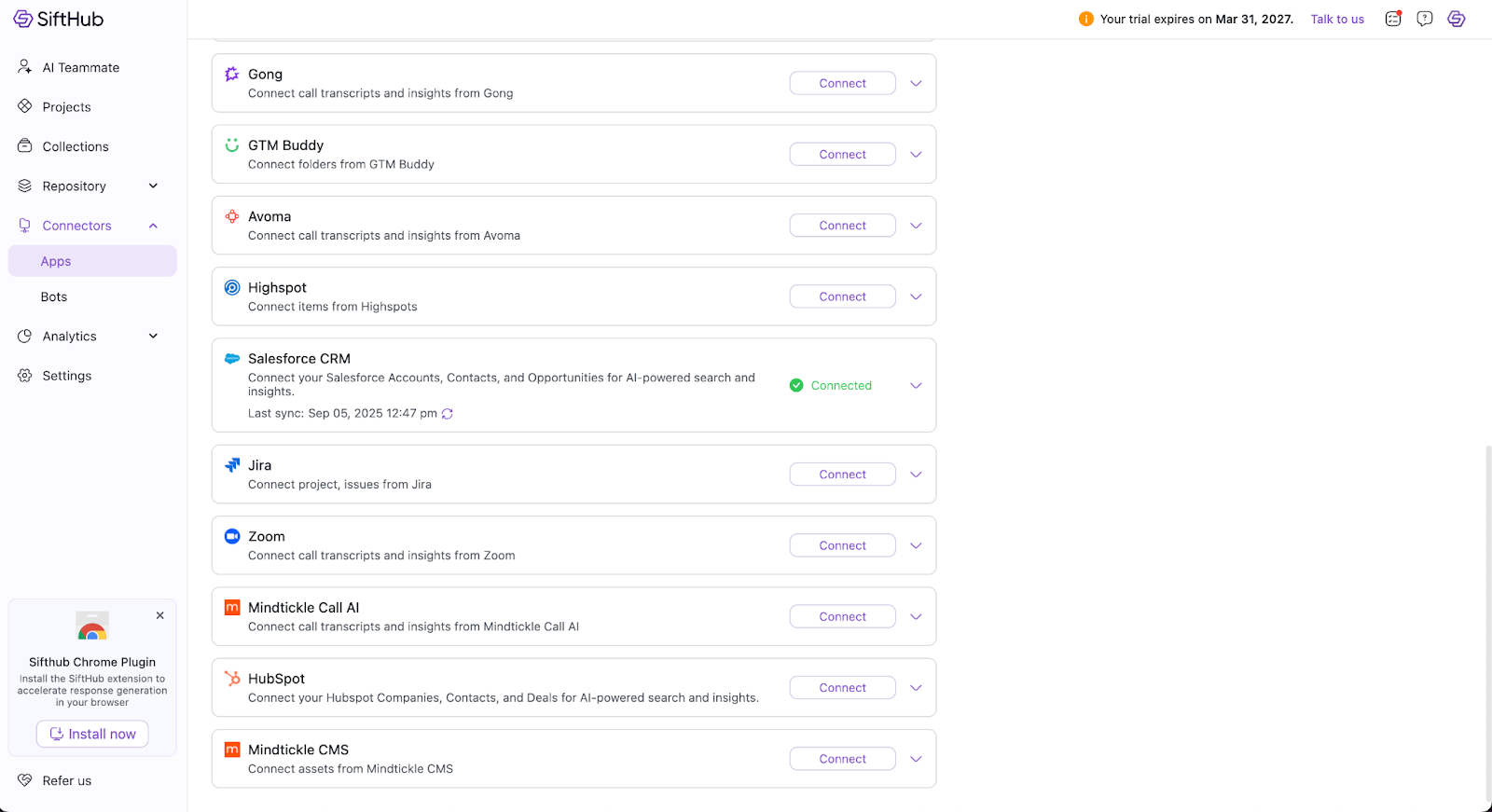
Step 1: Sign in to your company’s SiftHub account here. Navigate to Connectors > Apps > HubSpot.
Step 2: Click ‘Connect’ on the HubSpot Connector card, and you will be redirected to the HubSpot OAuth screen.
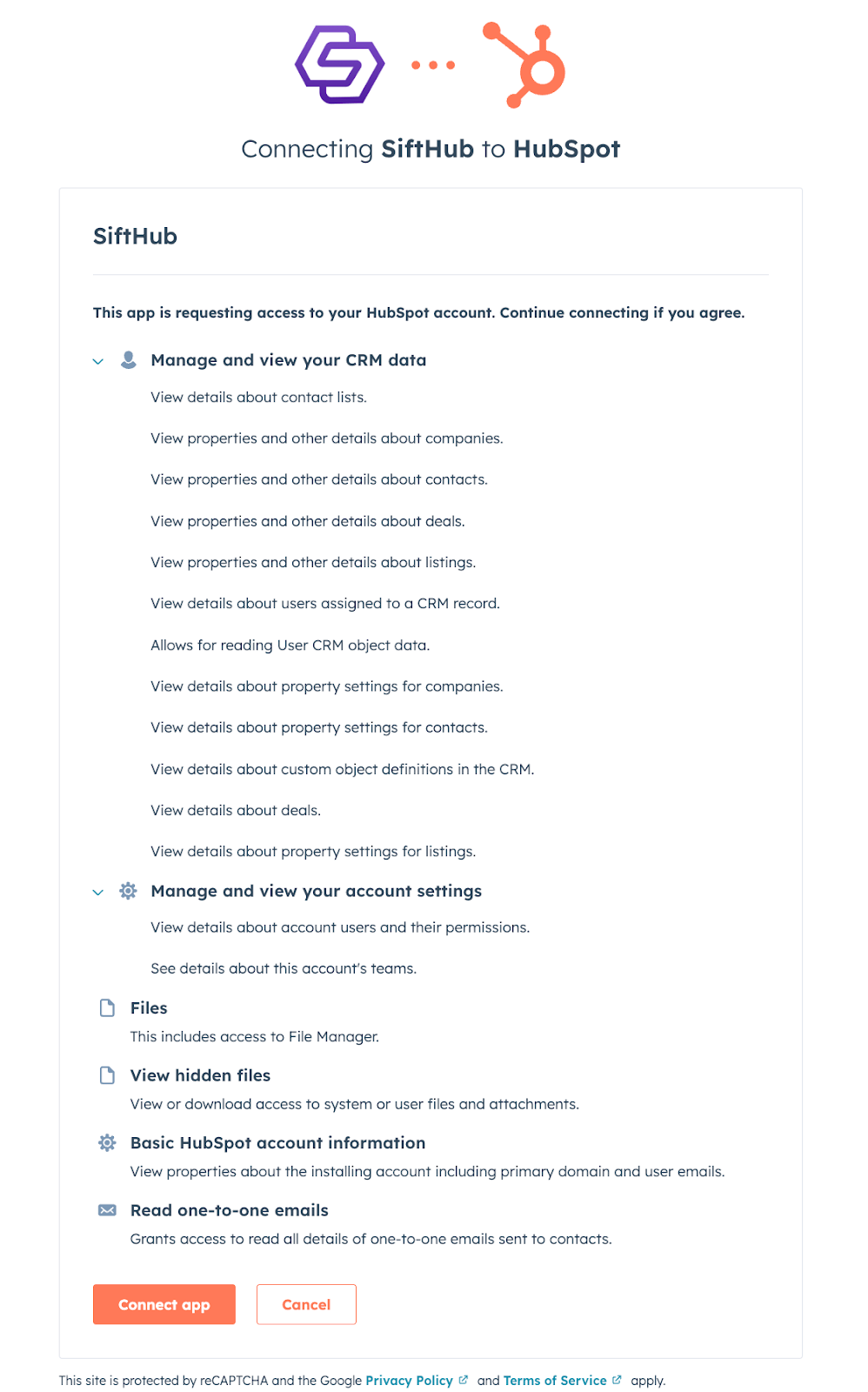
Step 3: On the OAuth consent screen that opens, click ‘Allow’ to authorize access. This installs the SiftHub App into your HubSpot workspace.
Step 4: If the connection is successful, you will be redirected back to SiftHub with the HubSpot Connector status showing as ‘Connected’.
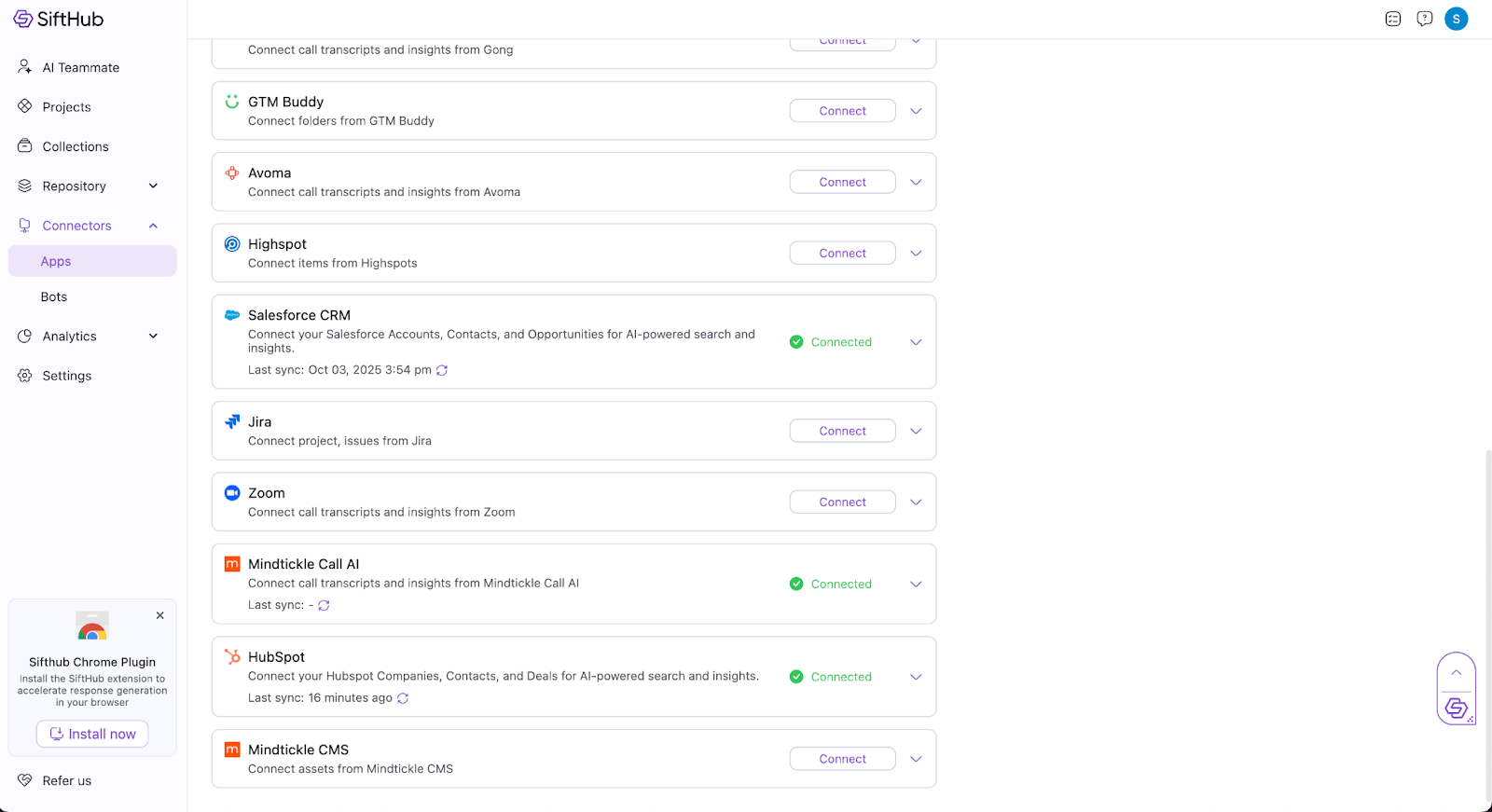
The SiftHub - HubSpot Connector instantly links deal context, customer history, and engagement records from your HubSpot CRM directly into your SiftHub AI Platform, eliminating data silos. This connection empowers your sales, solutions, and customer success teams to tap into this knowledge for AI response generation, document autofill, and collateral creation without leaving their workflow.
You can connect Deals, Contacts, Companies, Notes, Emails, Meetings, Tasks, and Attachments from your HubSpot CRM. SiftHub syncs and indexes all the selected objects and keeps the content updated via a regular near-real-time sync (within 30 minutes).
The integration is designed to empower your sales, solutions (presales), and customer success teams. It allows them to instantly tap into HubSpot deal context and history to generate content tailored to each prospect and customer.
No, SiftHub is a read-only integration; it does not modify or overwrite any data in HubSpot.
Your existing permissions model on HubSpot is reflected on SiftHub. This ensures that users on SiftHub only see the HubSpot records they already have access to. For instance, Notes, Emails, Meetings, Tasks, and Attachments are only visible to a user if they have access to the parent record (i.e., a deal or contact).
Yes, if a user is removed from HubSpot, they will automatically lose access to the HubSpot data within SiftHub as well.
Restricting specific objects is not currently supported. All listed objects (Deals, Contacts, Companies, etc.) are synced by default, and access is controlled solely by HubSpot’s native permissions.
The setup involves four main steps: 1) Sign in to SiftHub and navigate to Connectors > Apps > HubSpot. 2) Click ‘Connect’ and you will be redirected to the HubSpot OAuth screen. 3) On the consent screen, click ‘Allow’ to authorize access and install the SiftHub App. 4) Upon successful connection, you are redirected back to SiftHub.
If you need additional help, you can reach out directly to your SiftHub Customer Success Manager. Alternatively, you can write to the SiftHub support team at support@sifthub.io.
If you need any additional help in setting up your integration, feel free to reach out directly to your SiftHub Customer Success Manager, or write to us at support@sifthub.io.