SiftHub Logo-sm

SiftHub + Salesforce

Connect to your CRM and enjoy the benefit of contextual answers across your deal cycle.

Start Integrating Today

About the integration

Ever been stuck searching for that one answer you know exists somewhere?

You’ve scoured through threads, DMed your colleagues, and still—no luck. Sound familiar?

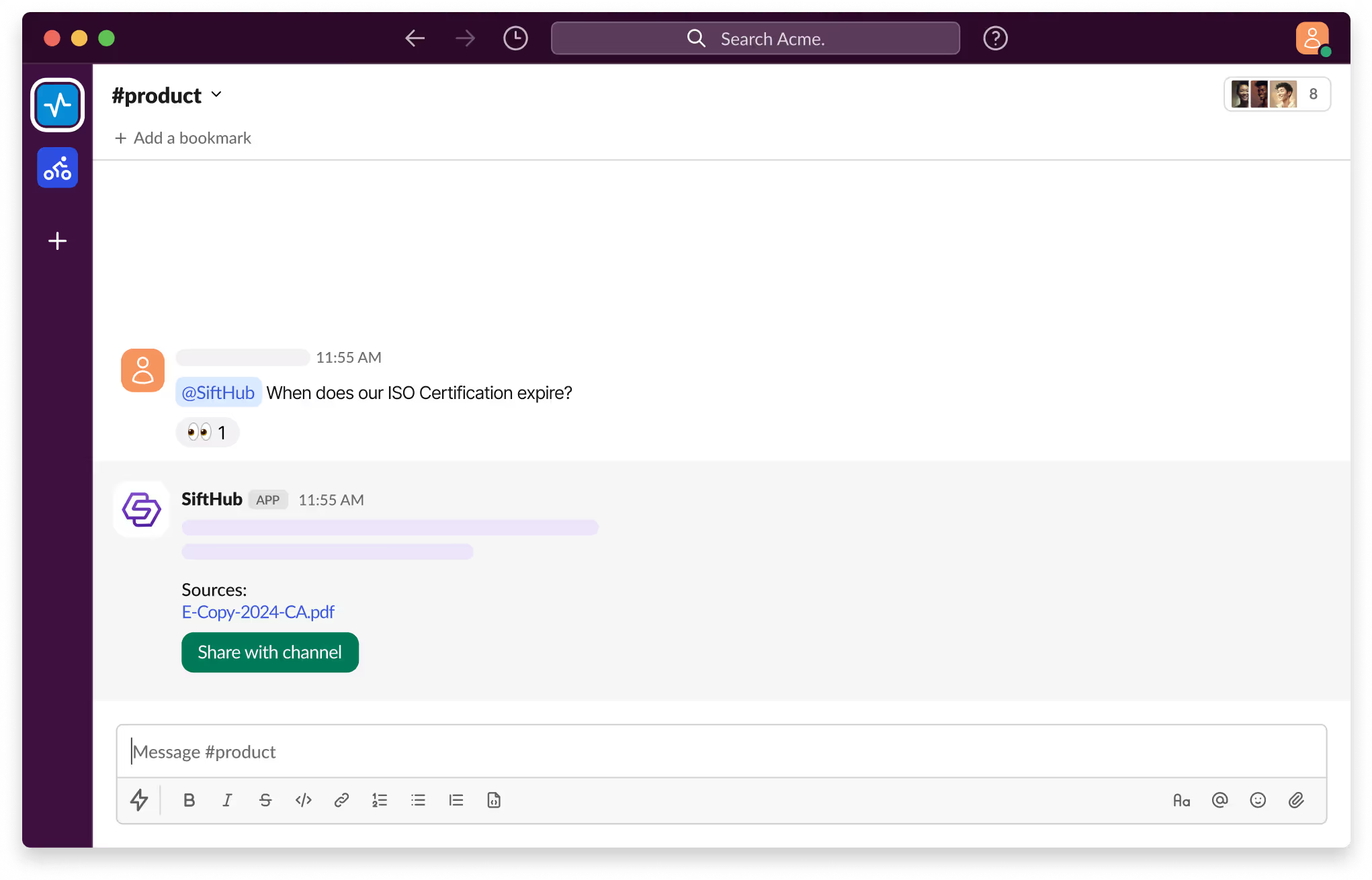
With SiftHub bot for Slack, those days are over. Simply @SiftHub in any Slack channel (public or private) and ask your question. Instantly, you'll get a response powered by the collective knowledge of all your connected sources on the SiftHub Platform.

No more digging, no more guessing—just answers, right when you need them.

The SiftHub Salesforce integration connects your Salesforce data into SiftHub, making your records available for intelligent search and AI response generation via the SiftHub Platform. It also allows you to link the right Opportunity details to specific RFPs so you don’t have to jump between tools when tackling big RFP projects.

Capabilities

Activating the SiftHub bot for Slack

Step 1:

Sign into your company’s SiftHub account here.

Step 2:

Once you’ve logged in, navigate to the ‘Connectors’ tab in the left side panel and select ‘Bots’. Find the ‘Slack’ bot in the ‘Bots’ tab and click ‘Activate’ after reading the description given there.

Step 3:

On the OAuth consent screen that opens, make sure the correct Slack Workspace is selected and click on the Allow button to approve the request for SiftHub to access your Slack workplace. It's important to review the permission that the consent screen shows before assenting to the permission request.

Step 4:

Once the setup is successful, you will be redirected to the SiftHub Web App and your bot connection status will show ‘Activated’.

Your SiftHub bot for Slack is now set up, make sure you test it!

Go to your Slack workspace to confirm that the SiftHub app now shows on the app section of your workspace. Tag @SiftHub in a channel or ask the bot a question via DM and confirm that you get a response. 

SiftHub-Slackbot-Product

Disclaimer:
SiftHub uses AI language models that generate responses from your organization’s connected knowledge sources. But it may sporadically be inaccurate. Always verify critical information independently when making important decisions.

Connection options SiftHub connects to your Salesforce content via an API Integration (Client Credentials Flow), providing comprehensive access to your data. This method requires specific configuration within your Salesforce organization, including the creation of a Connected App, a dedicated Integration User, and associated profiles and permission sets.
What gets connected You can connect and index both specific objects and critical fields.

Specific objects include Account, Contact, Opportunity, Task, Event, EmailMessage, ContentDocument, and Note. Critical fields include core system fields and object specific required fields.
How it works SiftHub indexes content from the supported Salesforce objects and makes it available for semantic search and AI response generation. New or modified content in connected objects appear in SiftHub within 6 hours.
Access controls SiftHub supports Salesforce native permissions around your profile, permission set, and permission set groups.

How to set up

Activating the SiftHub bot for Slack

Step 1:

Sign into your company’s SiftHub account here.

Step 2:

Once you’ve logged in, navigate to the ‘Connectors’ tab in the left side panel and select ‘Bots’. Find the ‘Slack’ bot in the ‘Bots’ tab and click ‘Activate’ after reading the description given there.

Step 3:

On the OAuth consent screen that opens, make sure the correct Slack Workspace is selected and click on the Allow button to approve the request for SiftHub to access your Slack workplace. It's important to review the permission that the consent screen shows before assenting to the permission request.

Step 4:

Once the setup is successful, you will be redirected to the SiftHub Web App and your bot connection status will show ‘Activated’.

Your SiftHub bot for Slack is now set up, make sure you test it!

Go to your Slack workspace to confirm that the SiftHub app now shows on the app section of your workspace. Tag @SiftHub in a channel or ask the bot a question via DM and confirm that you get a response. 

SiftHub-Slackbot-Product

Disclaimer:
SiftHub uses AI language models that generate responses from your organization’s connected knowledge sources. But it may sporadically be inaccurate. Always verify critical information independently when making important decisions.

Connection requirements: Ensure you, or the person helping you set up the integration, has Systems Administrator or equal permissions in your Salesforce organization.

Step 1: Set up SiftHub as a Connected App on Salesforce. To do this, log in to your Salesforce organization, go to ‘Setup’, click on ‘App Manager’ under Apps, and select ‘New External Client App’. 
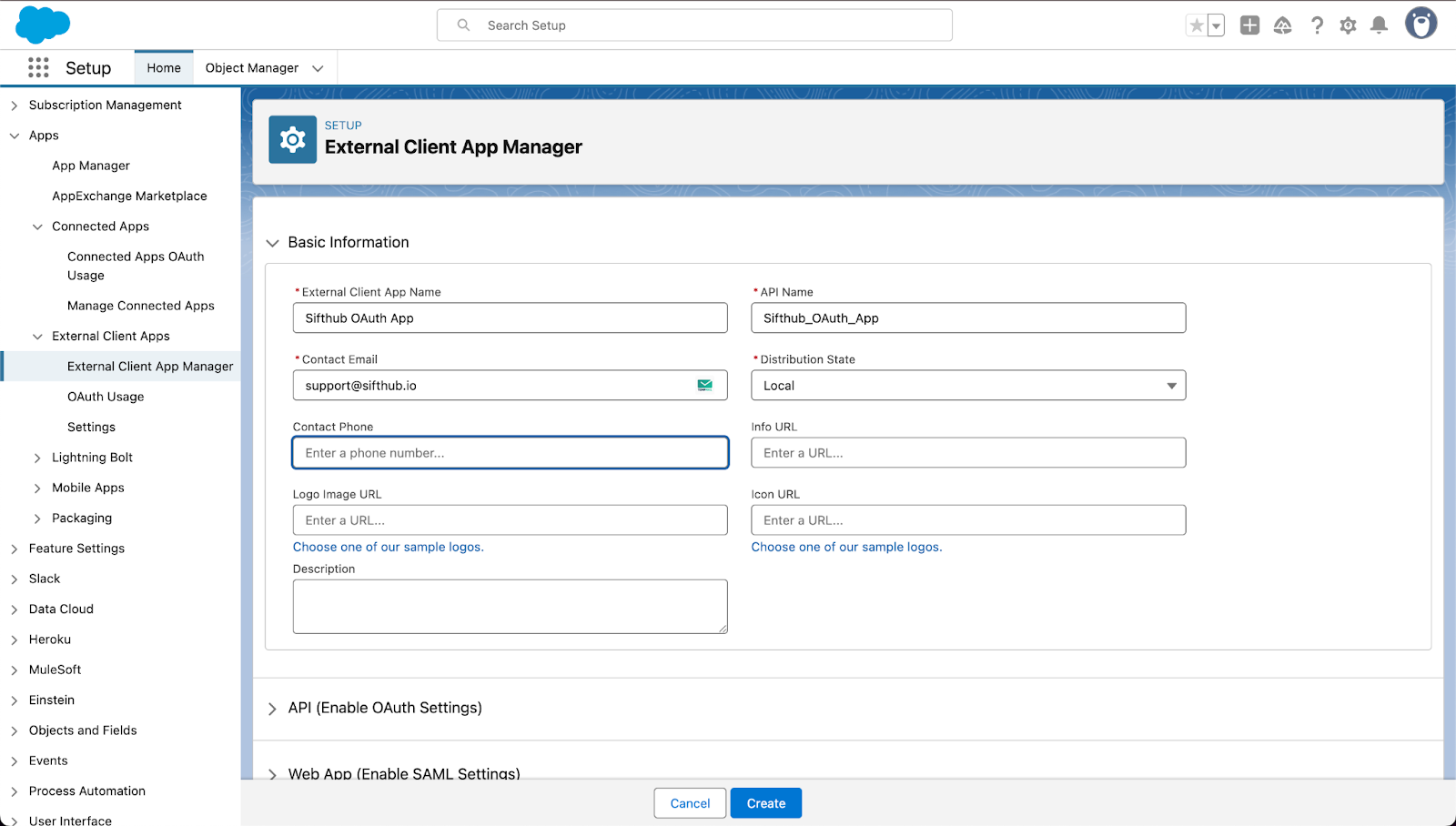
Step 2: After you’ve entered the App name, the API name will be auto-populated. Provide a valid email address for the app contact and check ‘Enable OAuth settings’ - this is mandatory for API access. Enter the callback URL and select and define the OAuth scopes. 
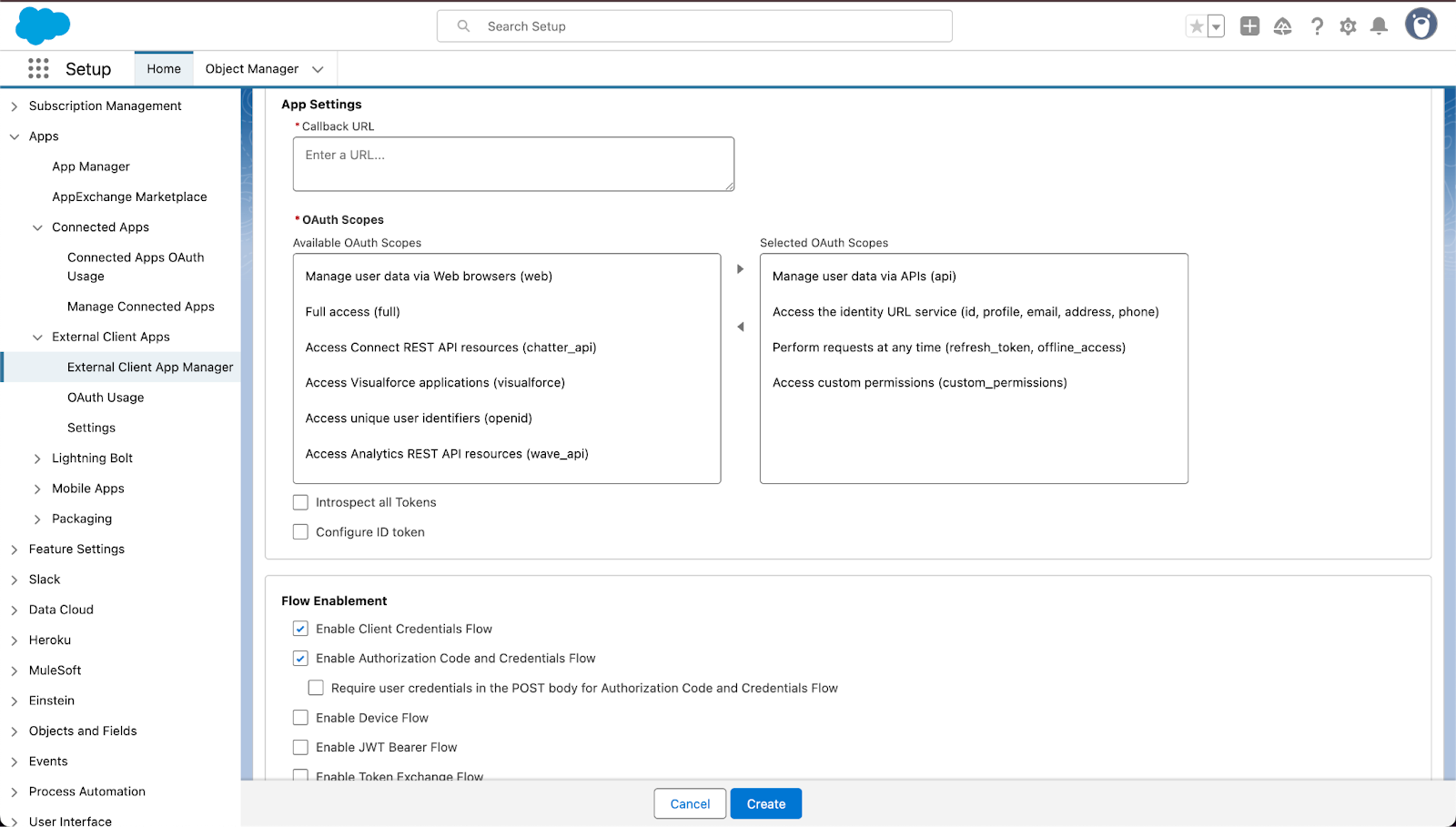
Step 3: Go to ‘Setup’ > ‘Users’ > ‘Profiles’ to create a custom profile for the SiftHub API integration.

Step 4: Configure an Integration User for your SiftHub API integration within Salesforce. To do this, go to ‘Setup’ > ‘Users’ > ‘Users’. Once the user is configured, hit ‘save’. 

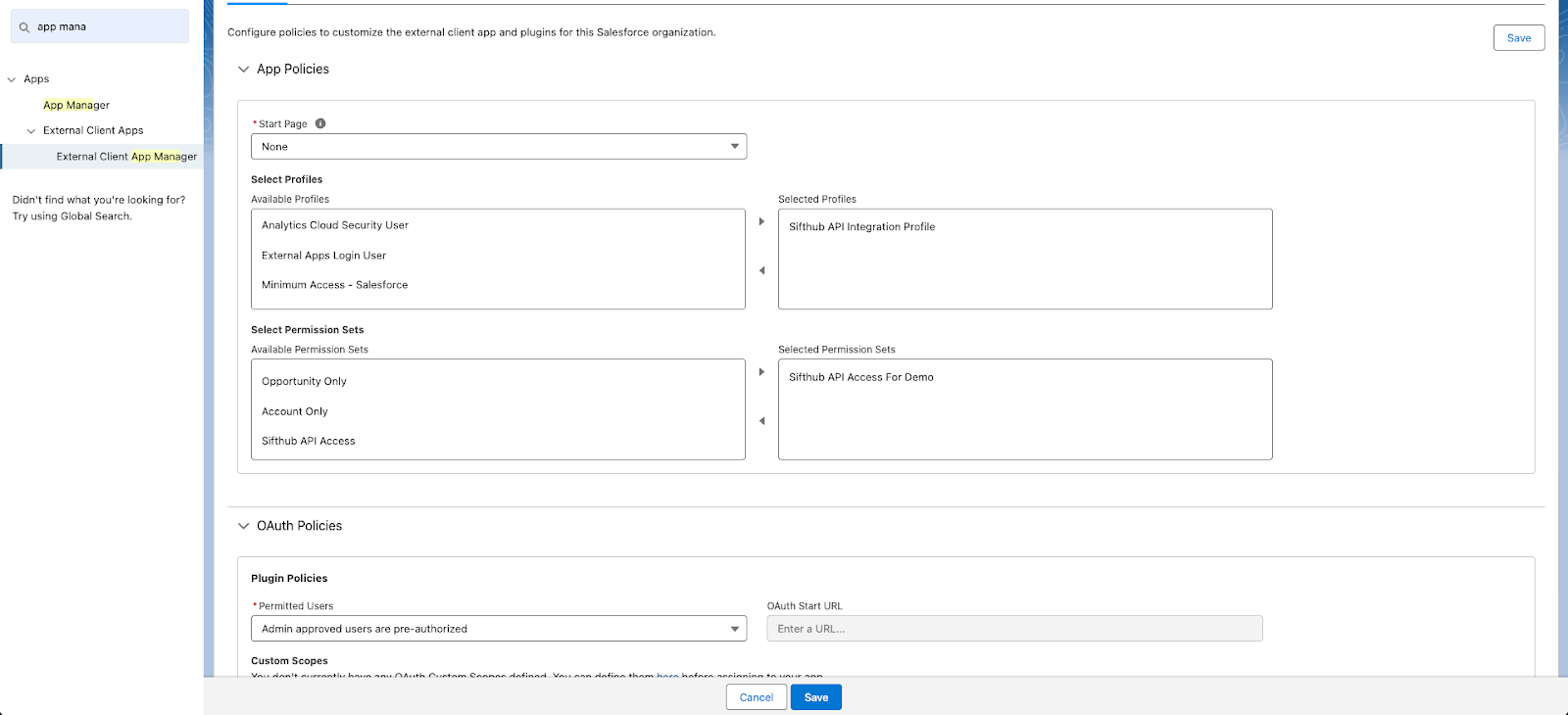
Step 5: Create a custom permission set for API access and assign it to your Integration User. Then, go to ‘Setup’ > ‘External Client App Manager’, find SiftHub and click on the dropdown to ‘Edit policies’. Enable Client Credentials Flow > Run and select your integration user. Refer to the screenshot below.
Step 6: View the ‘ External Client Connected App’ and ensure you copy and store your consumer key, consumer secret, and your Salesforce domain. 

Frequently asked questions

1. What is the SiftHub Salesforce integration?

The SiftHub Salesforce integration connects your Salesforce data into SiftHub, making your records available for search and AI response generation. It also helps map Opportunity details to specific RFPs.

What specific Salesforce objects and fields can be connected and indexed?

You can connect and index specific objects like Account, Contact, Opportunity, Task, Event, EmailMessage, ContentDocument, and Note. Critical fields include core system fields and object-specific required fields.

How does SiftHub connect to my Salesforce content?

SiftHub connects to your Salesforce content using an API Integration (Client Credentials Flow). This requires specific configuration, including creating a Connected App, a dedicated Integration User, and associated profiles/permission sets within your Salesforce organization.

How frequently is the content updated in SiftHub?

SiftHub indexes content from the supported Salesforce objects, and any new or modified content in the connected objects appears in SiftHub within 6 hours.

Does SiftHub support Salesforce's native access controls?

Yes, SiftHub supports Salesforce's native permissions based on your profile, permission set, and permission set groups.

Who needs to set up the SiftHub Salesforce integration?

The person setting up the integration must have Systems Administrator or equal permissions in your Salesforce organization.

What is the purpose of the Salesforce Connected App in this integration?

The Connected App is essential because it allows SiftHub, as an external system, to securely access your Salesforce data using APIs. The setup requires enabling the OAuth settings.

What are the key pieces of information I need to copy and store after setting up the External Client Connected App?

No, client data is never used to train the LLMs (Large Language Models) powering the SiftHub AI Platform.

Does SiftHub use my company's Salesforce data to train its AI models?

No, client data is never used to train the LLMs (Large Language Models) powering the SiftHub AI Platform.

What is the primary benefit of the SiftHub Salesforce integration for sales teams?

The integration enables you to get easy insight into account status, updates, and customer challenges and helps create personalized proposals at scale by pulling account-specific details directly into RFPs.

Need additional support?

If you need any additional help in setting up your integration, feel free to reach out directly to your SiftHub Customer Success Manager, or write to us at support@sifthub.io.

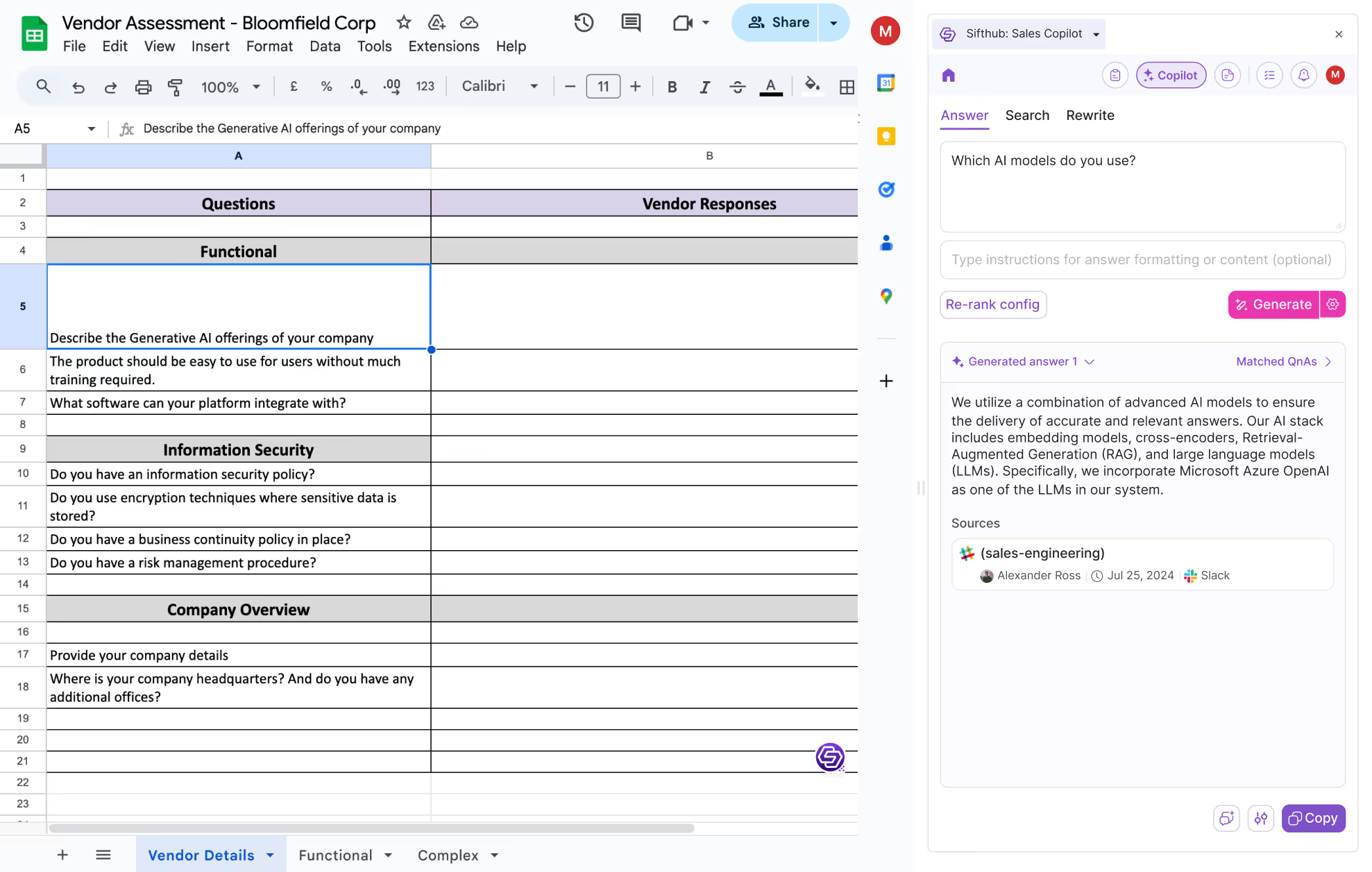
AI RFP software that works where you work

circle patterncircle pattern
#setup{ scroll-padding-top: 140px; }