SiftHub Logo-sm

SiftHub + Outlook Calendar

Know your attendees, their history, and what matters to them, before you join the call.

Start Integrating Today

About the integration

Ever been stuck searching for that one answer you know exists somewhere?

You’ve scoured through threads, DMed your colleagues, and still—no luck. Sound familiar?

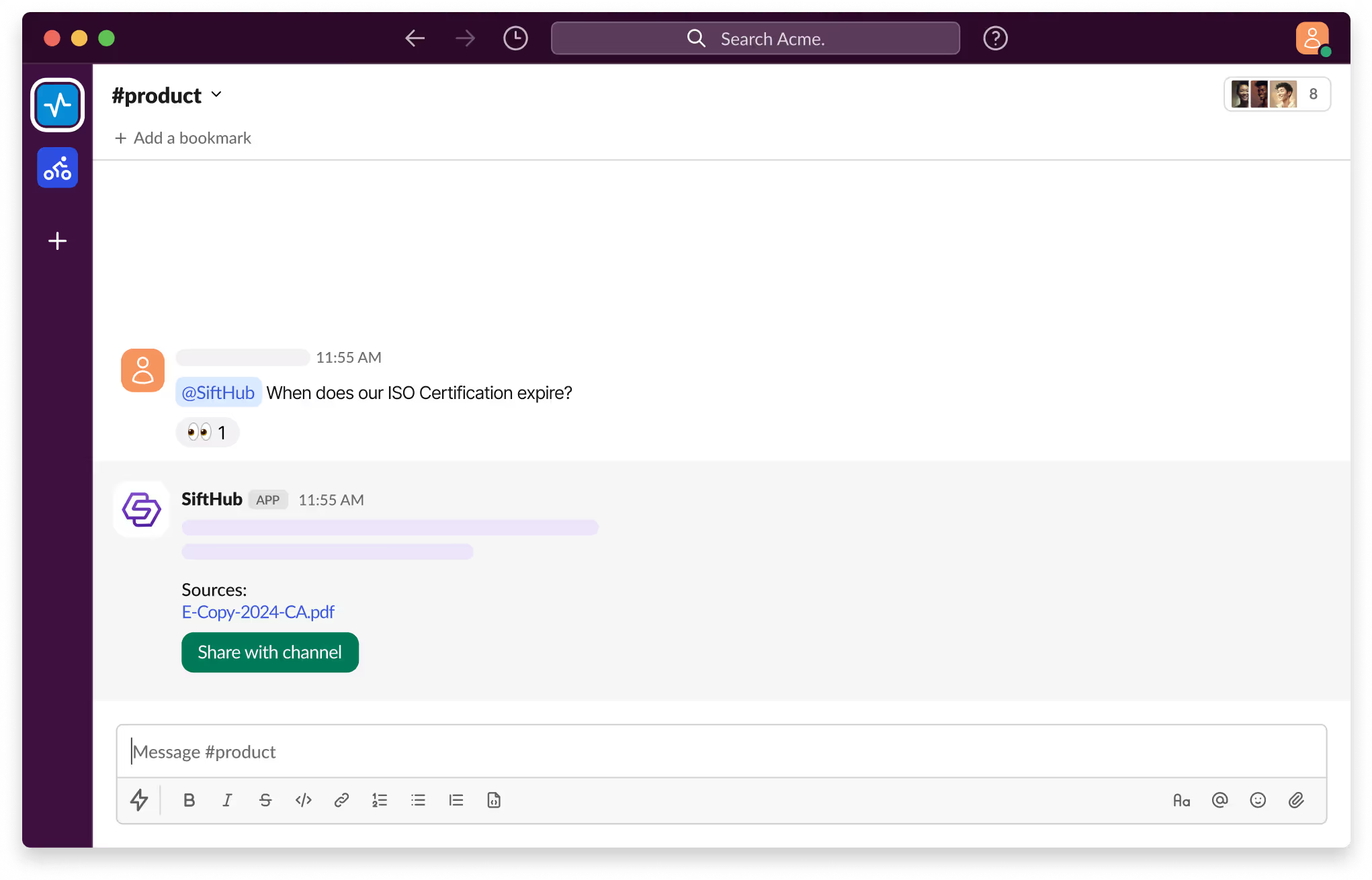
With SiftHub bot for Slack, those days are over. Simply @SiftHub in any Slack channel (public or private) and ask your question. Instantly, you'll get a response powered by the collective knowledge of all your connected sources on the SiftHub Platform.

No more digging, no more guessing—just answers, right when you need them.

SiftHub connects to Outlook Calendar through a Microsoft Azure App you register in the Azure portal. Once connected, SiftHub reads your meeting metadata and attachments and automatically generates pre-meeting briefs with attendee research, relevant deal context, and surfaced knowledge. Setup is self-serve and takes approximately 10 minutes.

Capabilities

Activating the SiftHub bot for Slack

Step 1:

Sign into your company’s SiftHub account here.

Step 2:

Once you’ve logged in, navigate to the ‘Connectors’ tab in the left side panel and select ‘Bots’. Find the ‘Slack’ bot in the ‘Bots’ tab and click ‘Activate’ after reading the description given there.

Step 3:

On the OAuth consent screen that opens, make sure the correct Slack Workspace is selected and click on the Allow button to approve the request for SiftHub to access your Slack workplace. It's important to review the permission that the consent screen shows before assenting to the permission request.

Step 4:

Once the setup is successful, you will be redirected to the SiftHub Web App and your bot connection status will show ‘Activated’.

Your SiftHub bot for Slack is now set up, make sure you test it!

Go to your Slack workspace to confirm that the SiftHub app now shows on the app section of your workspace. Tag @SiftHub in a channel or ask the bot a question via DM and confirm that you get a response. 

SiftHub-Slackbot-Product

Disclaimer:
SiftHub uses AI language models that generate responses from your organization’s connected knowledge sources. But it may sporadically be inaccurate. Always verify critical information independently when making important decisions.

Connection type SiftHub connects to Outlook Calendar via a Microsoft Azure App registered in the Azure portal. A Microsoft Azure Administrator sets up the app and configures API permissions. A SiftHub Admin or Account Owner activates the connector from the SiftHub Web App. Setup takes approximately 10 minutes.
What gets indexed SiftHub indexes meeting metadata, titles, dates, times, attendee lists, and descriptions — as well as file attachments from calendar invites.
How it works Every meeting becomes a trigger for proactive intelligence. Before the call, SiftHub auto-generates a brief covering attendee research, past conversation context, and relevant content surfaced from your connected tools. After the call, that same context feeds into follow-up collateral and handover docs, drawing from your CRM, Gong, Slack, and everything else connected to SiftHub. Meeting briefs go only to users listed on the invite.
Content updates SiftHub syncs calendar updates every 30 minutes. Cancelled or deleted events are updated automatically.
Access controls Meeting briefs are sent only to internal participants listed on the calendar invite as hosts or attendees. No one outside the invite receives access.

Is SiftHub's Outlook Calendar integration secure?

SiftHub connects to Outlook Calendar with read-only access. Here's how the rest of the security model works.

  • Participant-only access: Meeting briefs go strictly to users listed on the invite. Internal meetings stay private.
  • Read-only by design: SiftHub never modifies your calendar or sends anything on your behalf.
  • Data is encrypted: All calendar data is encrypted in transit and at rest using industry-standard protocols.
  • Enterprise-grade compliance: SiftHub is SOC 2 Type II certified across all connector types.

How to set up

Activating the SiftHub bot for Slack

Step 1:

Sign into your company’s SiftHub account here.

Step 2:

Once you’ve logged in, navigate to the ‘Connectors’ tab in the left side panel and select ‘Bots’. Find the ‘Slack’ bot in the ‘Bots’ tab and click ‘Activate’ after reading the description given there.

Step 3:

On the OAuth consent screen that opens, make sure the correct Slack Workspace is selected and click on the Allow button to approve the request for SiftHub to access your Slack workplace. It's important to review the permission that the consent screen shows before assenting to the permission request.

Step 4:

Once the setup is successful, you will be redirected to the SiftHub Web App and your bot connection status will show ‘Activated’.

Your SiftHub bot for Slack is now set up, make sure you test it!

Go to your Slack workspace to confirm that the SiftHub app now shows on the app section of your workspace. Tag @SiftHub in a channel or ask the bot a question via DM and confirm that you get a response. 

SiftHub-Slackbot-Product

Disclaimer:
SiftHub uses AI language models that generate responses from your organization’s connected knowledge sources. But it may sporadically be inaccurate. Always verify critical information independently when making important decisions.

Setup is self-serve and takes approximately 10 minutes. Register an Azure App, configure API permissions, and share your credentials with your SiftHub CSM. They handle activation within 24 hours. Full step-by-step instructions are in the SiftHub Help Center.

Connection requirements

  • Microsoft Azure Administrator access: Required to register the app and configure API permissions
  • SiftHub Admin or Account Owner role: Required to activate the connector from the SiftHub Web App

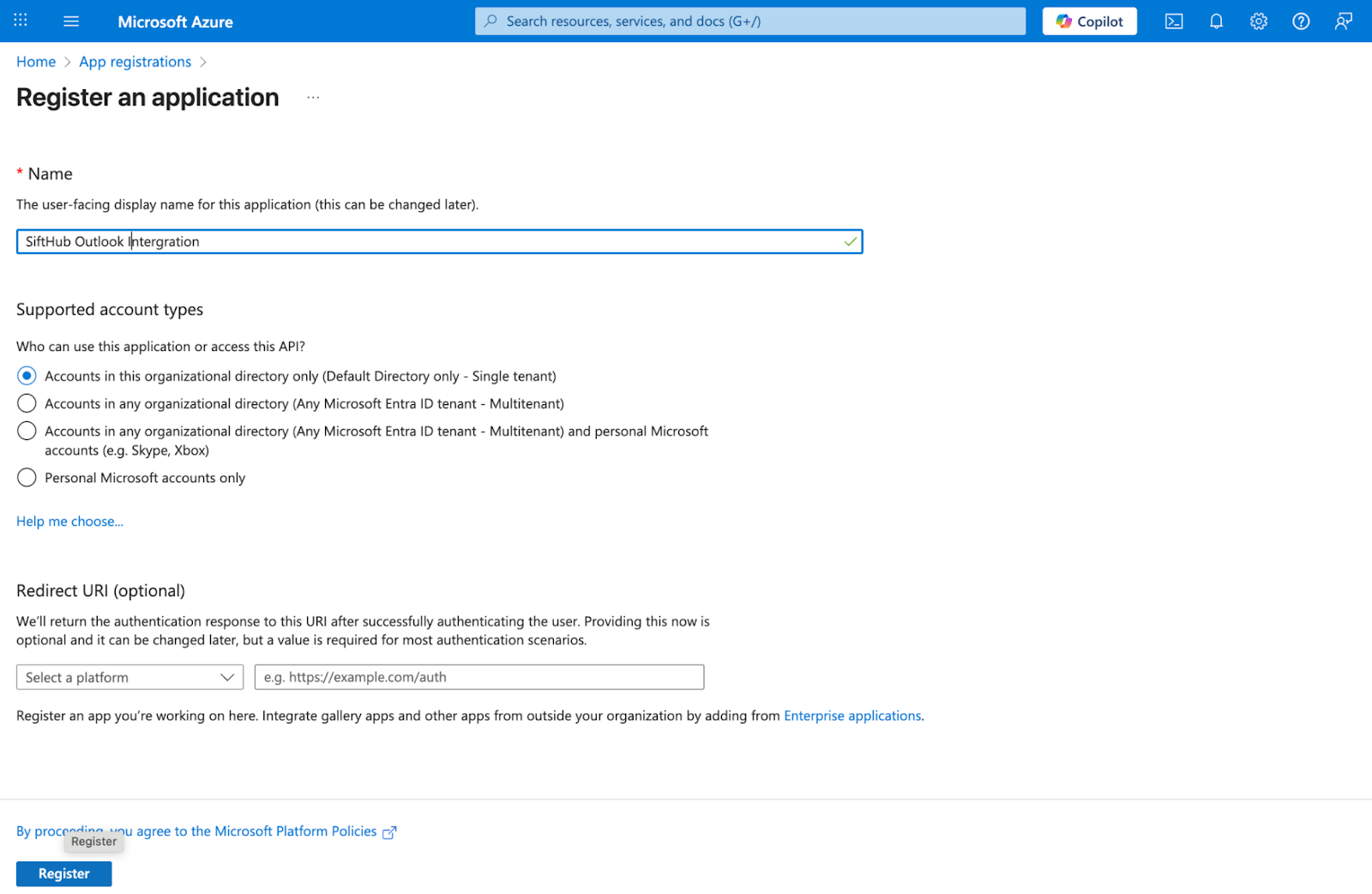
Step 1: Register a Microsoft Azure App

In the Azure portal, register a new app named ‘SiftHub Calendar Integration.’ Create a client secret and save the value immediately; it's hidden after you leave the page.
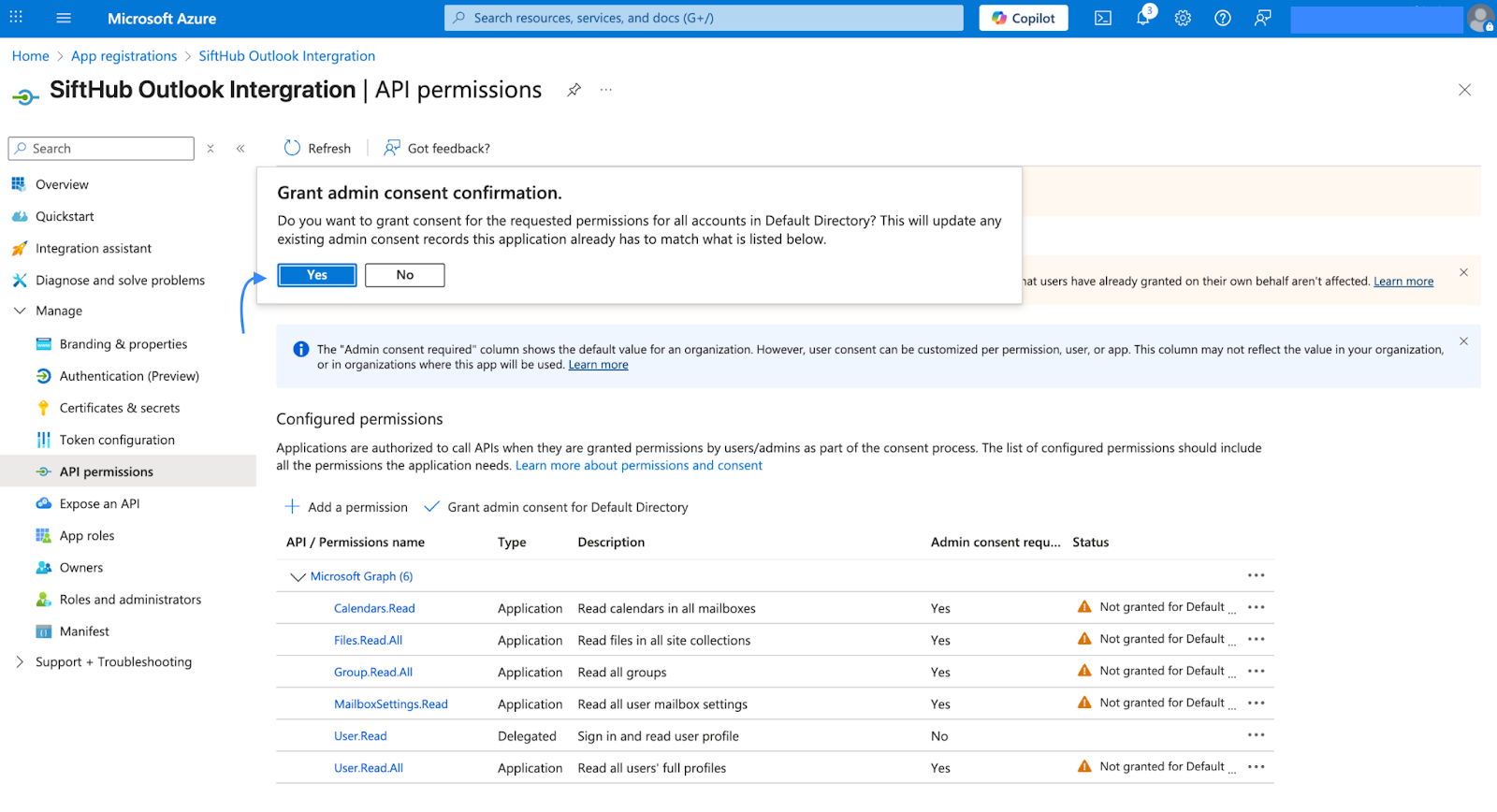
Step 2: Configure API permissions

Grant the app the required Microsoft Graph API permissions for reading calendars, user profiles, attachments, mailbox settings, and group memberships. Grant admin consent to confirm.
Want to restrict access to specific users? SiftHub supports a scoped setup using a Mail-Enabled Security Group. This limits calendar ingestion to only the users you specify. There's additional setup involved; contact your SiftHub CSM or refer to the Help Center for details.

Step 3: Share credentials with your SiftHub CSM

Share the following with your SiftHub CSM:

  • Application (Client) ID
  • Directory (Tenant) ID
  • Client Secret

They'll complete activation within 24 hours.

Activation and timing

Setup time ~10 minutes
CSM activation Within 24 hours of receiving credentials
Sync frequency Every 30 minutes

Frequently asked questions

Do I need a Microsoft Azure Admin to connect to SiftHub?
Yes. A Microsoft Azure Administrator registers the app and configures API permissions. Once done, a SiftHub Admin or Account Owner activates the connector from the SiftHub Web App.
What does a meeting brief include?
Only internal participants listed on the calendar invite, as hosts or attendees. Briefs are never sent to anyone outside the invite or outside the organization.
Who receives the meeting brief?
Only internal participants listed on the calendar invite, as hosts or attendees. Briefs are never sent to anyone outside the invite or outside the organization.
Does SiftHub access my entire calendar?
By default, SiftHub can access calendars across your tenant. If you prefer to restrict access to specific users, SiftHub supports a scoped setup using a Mail-Enabled Security Group. Contact your SiftHub CSM for details.
Does SiftHub modify my calendar or send emails on my behalf?
No. SiftHub is read-only. It never modifies your calendar or sends anything on your behalf.
How far in advance is the meeting brief generated?
SiftHub generates briefs based on upcoming calendar events. Briefs are available before the meeting starts; the exact timing depends on your sync cycle.
What happens if a meeting is cancelled?
Cancelled and deleted events are automatically updated in SiftHub during the next sync cycle.
Can SiftHub use calendar context alongside other connected tools?
Yes. Calendar data feeds into the same intelligence layer as your CRM, Gong, Slack, and other connectors, so briefs reflect the full picture of a deal, not just the invite details.
What file attachments does SiftHub index from calendar invites?
SiftHub indexes internal file attachments included in calendar invites as part of the meeting context. These are used to enrich the pre-meeting brief.
Our team has back-to-back calls. Will SiftHub generate a brief for every meeting?
Yes. SiftHub generates a brief for every connected calendar event. Each brief is tailored to that specific meeting, attendees, context, and relevant content, so your team is prepared for every call, not just the big ones.

Need additional support?

If you need any additional help in setting up your integration, feel free to reach out directly to your SiftHub Customer Success Manager, or write to us at support@sifthub.io.

AI RFP software that works where you work

#setup{ scroll-padding-top: 140px; }