SiftHub Logo-sm

SiftHub + SharePoint

Bring your SharePoint and OneDrive content into every deal conversation with full, context-specific answers drawn from your team's existing knowledge.

Start Integrating Today

About the integration

Ever been stuck searching for that one answer you know exists somewhere?

You’ve scoured through threads, DMed your colleagues, and still—no luck. Sound familiar?

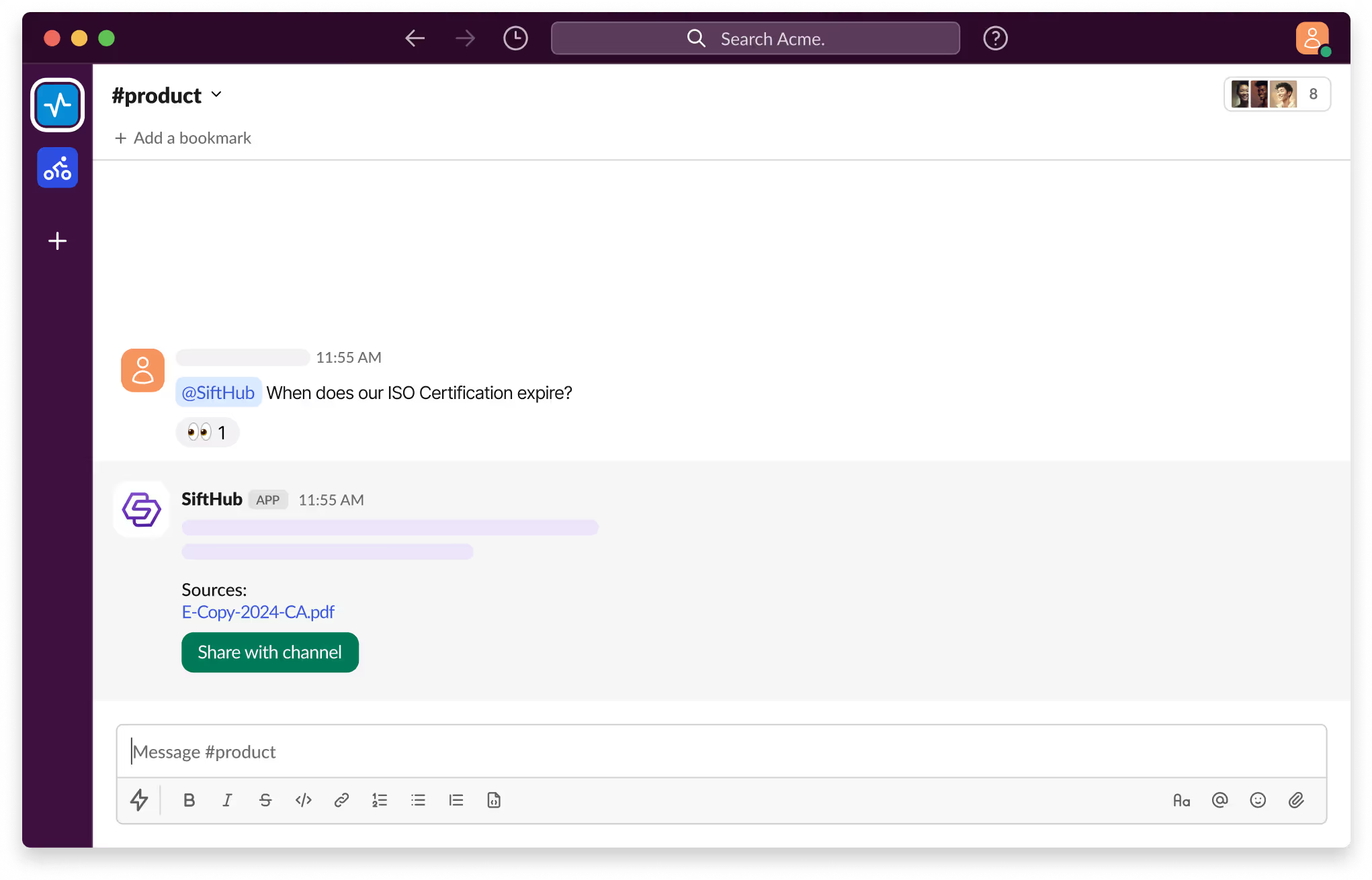
With SiftHub bot for Slack, those days are over. Simply @SiftHub in any Slack channel (public or private) and ask your question. Instantly, you'll get a response powered by the collective knowledge of all your connected sources on the SiftHub Platform.

No more digging, no more guessing—just answers, right when you need them.

SiftHub connects to SharePoint and OneDrive through a Microsoft Azure App you register in the Azure portal. You configure the app, set the required permissions, and activate the connector directly from the SiftHub Web App, no back-and-forth required. If you run into anything along the way, your SiftHub CSM is available to help.

Capabilities

Activating the SiftHub bot for Slack

Step 1:

Sign into your company’s SiftHub account here.

Step 2:

Once you’ve logged in, navigate to the ‘Connectors’ tab in the left side panel and select ‘Bots’. Find the ‘Slack’ bot in the ‘Bots’ tab and click ‘Activate’ after reading the description given there.

Step 3:

On the OAuth consent screen that opens, make sure the correct Slack Workspace is selected and click on the Allow button to approve the request for SiftHub to access your Slack workplace. It's important to review the permission that the consent screen shows before assenting to the permission request.

Step 4:

Once the setup is successful, you will be redirected to the SiftHub Web App and your bot connection status will show ‘Activated’.

Your SiftHub bot for Slack is now set up, make sure you test it!

Go to your Slack workspace to confirm that the SiftHub app now shows on the app section of your workspace. Tag @SiftHub in a channel or ask the bot a question via DM and confirm that you get a response. 

SiftHub-Slackbot-Product

Disclaimer:
SiftHub uses AI language models that generate responses from your organization’s connected knowledge sources. But it may sporadically be inaccurate. Always verify critical information independently when making important decisions.

Connection type SiftHub connects to Notion via an integration created in your Notion workspace. A Notion Workspace Owner generates the integration token and configures capabilities. A SiftHub Admin or Account Owner activates the connector from the SiftHub Web App.

Setup takes approximately 10 minutes and is fully self-serve.
What gets indexed SiftHub indexes page content, text, headings, lists, quotes, callouts, and rich text, along with supported attachments including Word documents, PowerPoint presentations, Excel spreadsheets, PDFs, CSVs, and text files under 1GB.

All child pages you have full access to are automatically included. Media content such as images, videos, and audio is not indexed.
How it works SiftHub scans your indexed Notion pages, including product docs, solution guides, competitive intel, and runbooks, and surfaces relevant content across your RFP responses, meeting prep, follow-up collateral, and handover docs.

Every answer links back to the exact Notion page it originated from. SiftHub combines this with context from your CRM, Slack, Gong, and other connected tools to provide a complete picture of every deal.
Content updates SiftHub syncs new and modified content every 30 minutes. This includes new pages, edits, changes to child pages, and deletions.

Deleted content is automatically removed from SiftHub results.
Access controls All connected Notion pages are visible to all users in your SiftHub account. Notion page-level permissions are not enforced within SiftHub.

It is important to keep this in mind when selecting which pages to connect.

Is SiftHub's SharePoint integration secure?

SiftHub only indexes the content you explicitly connect. You define the scope — everything outside it stays private. Here's how the rest of the security model works.

  • You stay in control: SiftHub indexes only the sites, folders, and files you connect during setup. What you don't include, it doesn't see.
  • Permissions are respected: SiftHub reflects SharePoint and OneDrive's existing access controls. If someone can't view a file in SharePoint, they won't find it in SiftHub either. Changes in Microsoft 365 are automatically picked up.
  • PII is protected: SiftHub's indexing workflows are designed to exclude or redact Personally Identifiable Information, so sensitive details don't surface in AI-generated responses.
  • Your data is encrypted: All data moving between Microsoft 365 and SiftHub is encrypted in transit and at rest using industry-standard protocols.
  • Enterprise-grade compliance: SiftHub is SOC 2 Type II-certified and supports GDPR-compliant ingestion at the team or regional level.

How to set up

Activating the SiftHub bot for Slack

Step 1:

Sign into your company’s SiftHub account here.

Step 2:

Once you’ve logged in, navigate to the ‘Connectors’ tab in the left side panel and select ‘Bots’. Find the ‘Slack’ bot in the ‘Bots’ tab and click ‘Activate’ after reading the description given there.

Step 3:

On the OAuth consent screen that opens, make sure the correct Slack Workspace is selected and click on the Allow button to approve the request for SiftHub to access your Slack workplace. It's important to review the permission that the consent screen shows before assenting to the permission request.

Step 4:

Once the setup is successful, you will be redirected to the SiftHub Web App and your bot connection status will show ‘Activated’.

Your SiftHub bot for Slack is now set up, make sure you test it!

Go to your Slack workspace to confirm that the SiftHub app now shows on the app section of your workspace. Tag @SiftHub in a channel or ask the bot a question via DM and confirm that you get a response. 

SiftHub-Slackbot-Product

Disclaimer:
SiftHub uses AI language models that generate responses from your organization’s connected knowledge sources. But it may sporadically be inaccurate. Always verify critical information independently when making important decisions.

Setup is self-serve and takes approximately 5 minutes. You'll register an Azure App, configure API permissions, and activate the connector directly from the SiftHub Web App. If you get stuck at any point, reach out to your SiftHub CSM or contact support@sifthub.io.

Connection requirements

Before you begin, make sure you have the following, or contact the relevant administrator:

  • Microsoft Azure Administrator access: required to register the Azure App and configure API permissions
  • SiftHub Admin or Account Owner role: required to activate the connector from SiftHub Web App → Connectors → Apps

Step 1: Register a Microsoft Azure App

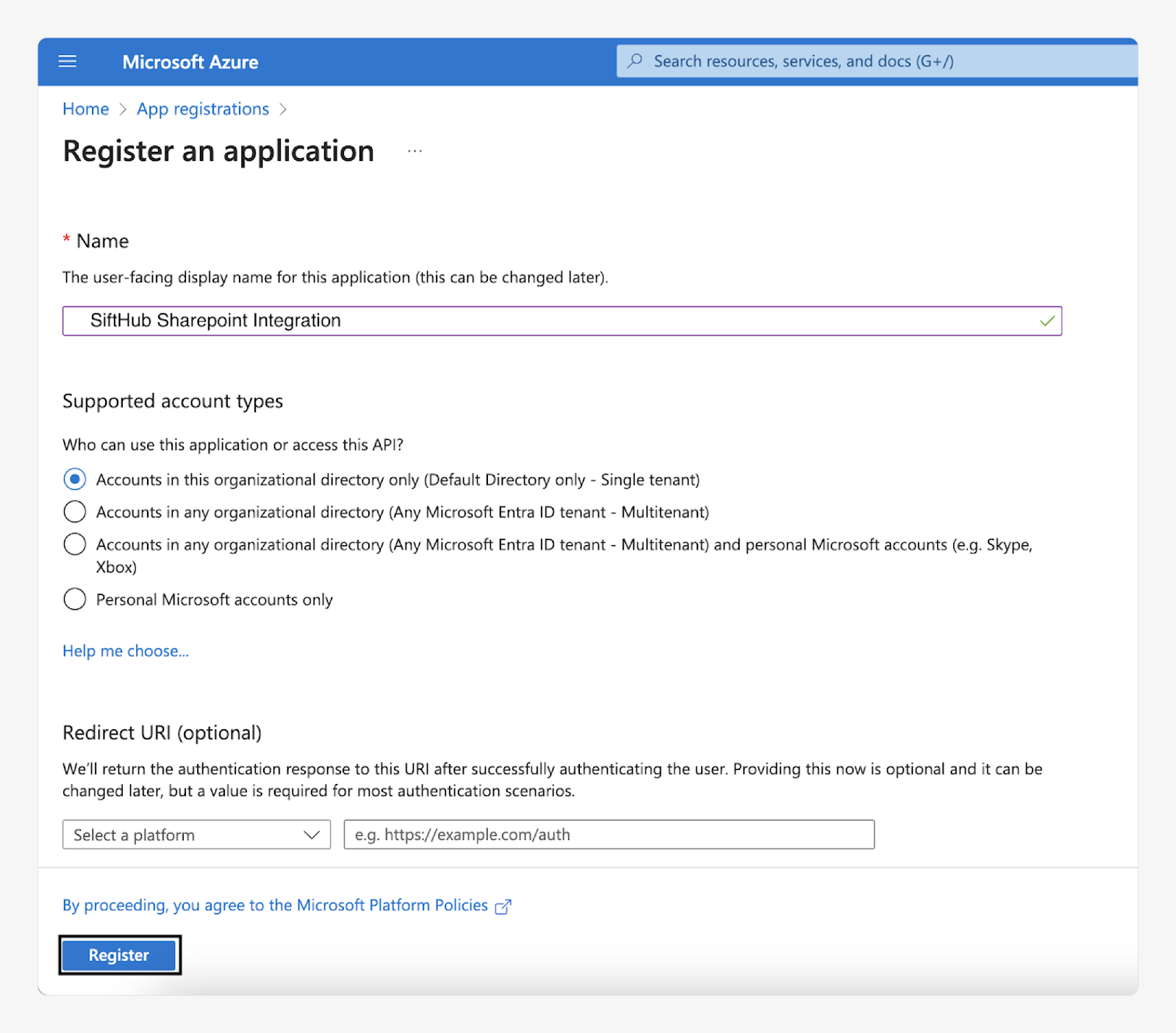
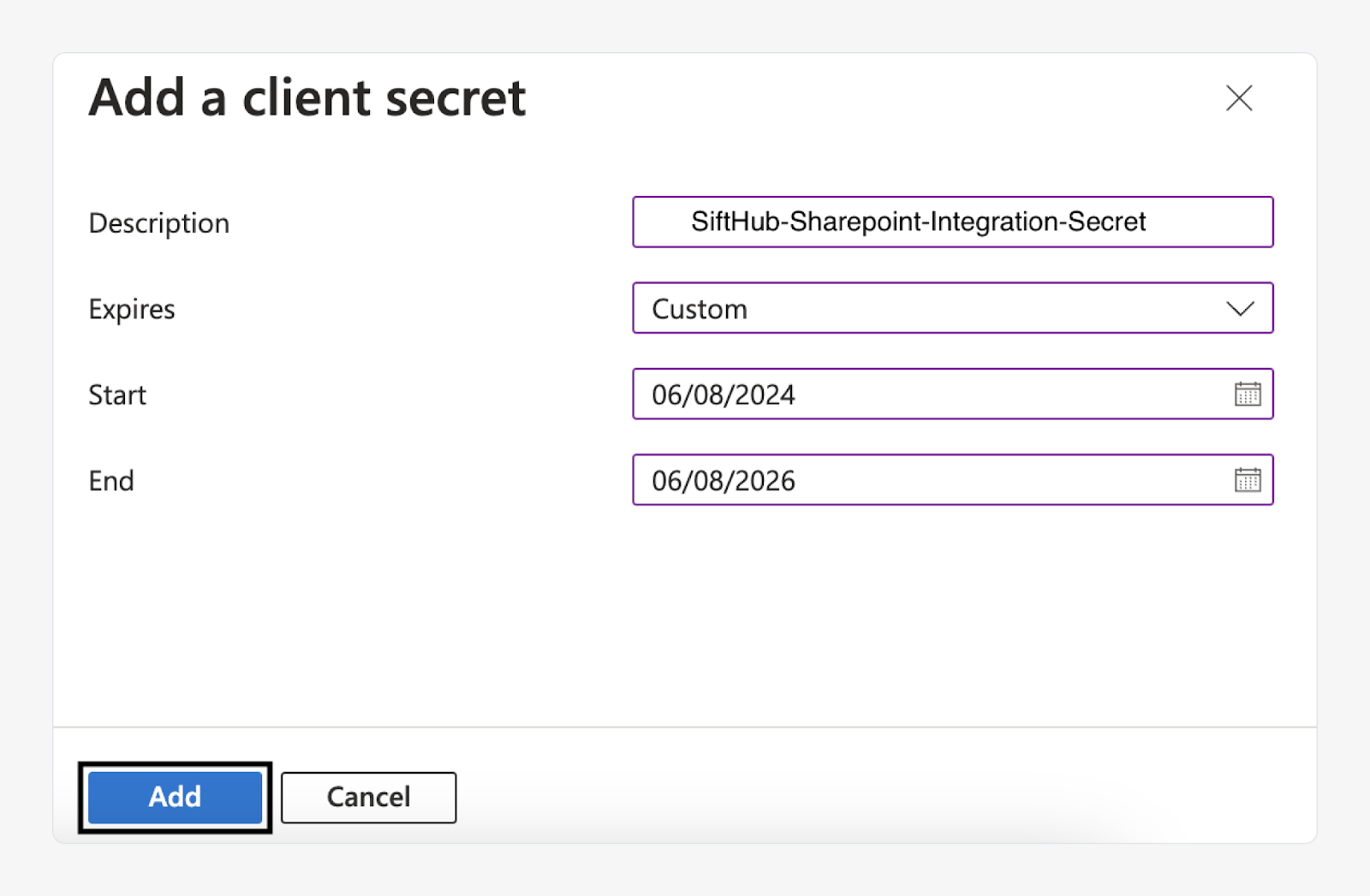
In the Azure portal, register a new app named ‘SiftHub SharePoint Integration.’ Create a client secret, generate a certificate, and save your credentials. You'll need them to activate the connector in SiftHub. Full instructions are available in the SiftHub Help Center.
Step 2: Configure API permissions

Grant the app the required Microsoft Graph and SharePoint API permissions, then provide admin consent. This allows SiftHub to read files and respect user and group permissions across your SharePoint and OneDrive content.

Prefer tighter scope control? SiftHub supports an alternate permissions path that gives you explicit control over which sites are accessible. The trade-off is a manual step each time you add a new site. Contact your SiftHub CSM or refer to the Help Center for details.

Step 3: Activate the Connector in SiftHub

In the SiftHub Web App, go to Connectors → Apps → SharePoint and click Connect. Enter your Client ID, Tenant ID, Client Secret, and upload your certificate files. Click Continue.
Step 4: Add your sites, folders, and files

SiftHub only indexes what you explicitly connect. Paste the URLs of the SharePoint sites, folders, files, or OneDrive content you want indexed directly into SiftHub. You can expand or update this at any time.

Activation and timing

Setup time ~5 minutes
Sync frequency after activation Every 30 minutes
Manual sync Not available — content updates on the automatic cycle

Frequently asked questions

Do I need a Microsoft Azure admin to connect to SiftHub?
Yes. A Microsoft Azure Administrator is needed to register the app and configure API permissions in the Azure portal. Once that's done, a SiftHub Admin or Account Owner can activate the connector directly from the SiftHub Web App, no CSM involvement required.
Can I control which SharePoint sites and OneDrive files get indexed?
Yes, fully. SiftHub only indexes the sites, folders, and files you explicitly add during setup. You can start with a narrow scope and expand it at any time by adding new URLs in the SiftHub Web App.
Does SiftHub respect SharePoint's native permissions?
Yes. SiftHub mirrors Microsoft 365's existing access controls. Users only see content from files they're already authorized to view, and any permission changes in SharePoint or OneDrive are automatically picked up.
What file types does SiftHub support from SharePoint and OneDrive?
SiftHub indexes Word, PowerPoint, Excel, PDF, CSV, and plain text files. Images inside documents are not currently processed, and files must be under 1GB to be indexed. SharePoint site content other than documents, like pages or lists, is not indexed.
Can SiftHub use SharePoint content alongside other connected tools?
Yes. SharePoint and OneDrive are two sources in a broader intelligence layer. SiftHub combines them with your CRM, Slack, Gong, Zoom, Google Drive, and other connectors so that responses, prep briefs, and handover docs always reflect the full picture of a deal — not just what's stored in one place.
How long does setup take?
The Azure App setup takes approximately 5 minutes. Once the connector is activated, SiftHub starts indexing your connected content; new and modified files are available within 30 minutes.
How often does SiftHub sync content from SharePoint and OneDrive?
SiftHub automatically syncs new and modified files every 30 minutes. There is no manual sync option; content availability depends on the automatic cycle.
What happens if a file is deleted in SharePoint or OneDrive?
Deleted files are automatically removed from SiftHub results in the next sync cycle. SiftHub always reflects the current state of your connected content.
Can I connect both SharePoint sites and OneDrive in the same integration?
Yes. SiftHub treats SharePoint and OneDrive as two distinct connection types within the same integration. You can connect SharePoint sites, folders, or files alongside OneDrive personal folders, individual files, or shared content, all managed from the same connector.
Our organization prefers not to grant broad API permissions. Is there an option for tighter scope control?
Yes. SiftHub supports an alternate permissions path using Sites. Selected and Files.SelectedOperations.Selected, which gives your Azure Administrator explicit control over which sites SiftHub can access. The trade-off is a manual step each time you want to index a new site. Reach out to your SiftHub CSM or refer to the Help Center for setup instructions.

Need additional support?

If you need any additional help in setting up your integration, feel free to reach out directly to your SiftHub Customer Success Manager, or write to us at support@sifthub.io.

AI RFP software that works where you work

#setup{ scroll-padding-top: 140px; }